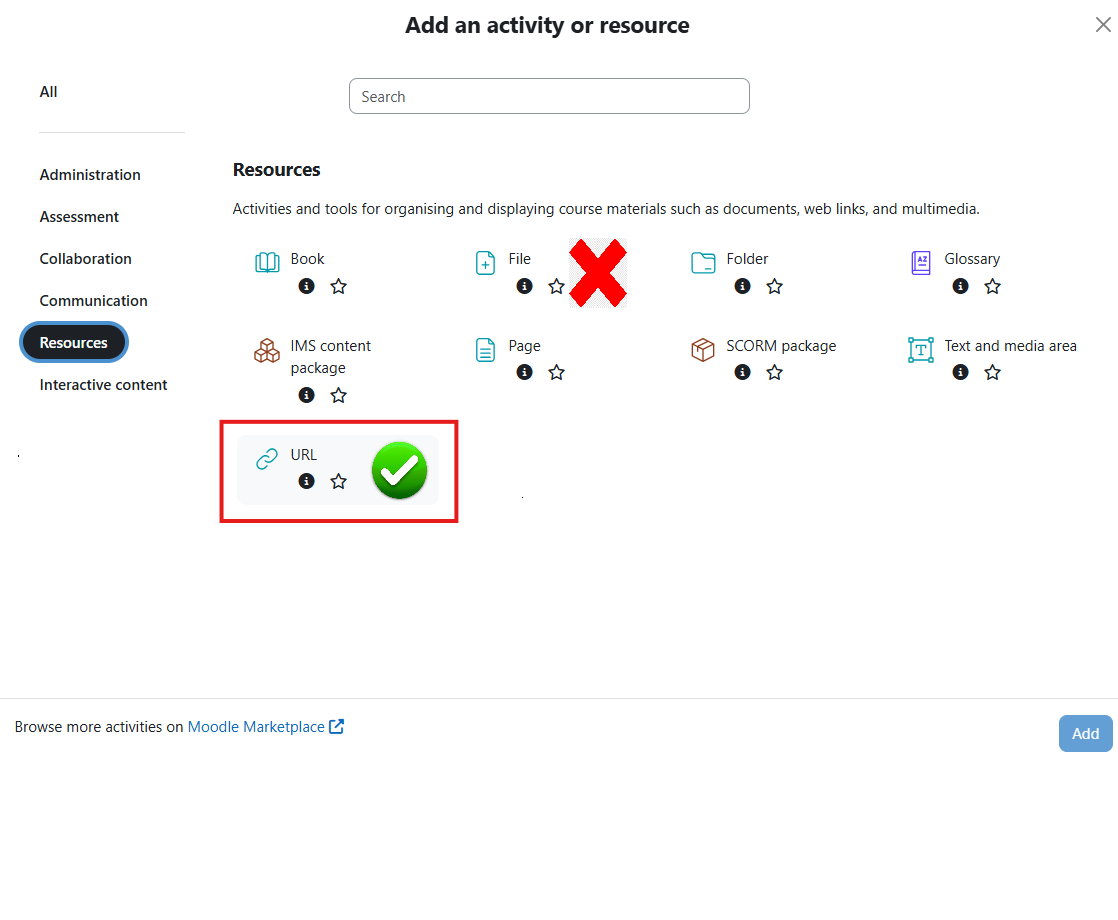
The new file upload limit on the Moodle is 100 MB. This is to prevent data storage overflow problems from destabilizing the Moodle service. For details, see: Why can’t I upload a larger course backup file?
To reduce the data storage footprint of your course, try the following:
- Instead of uploading files to the Moodle server using the “file” activity, switch to hosting very large files, such as videos or high-quality color pdfs or images, on an external cloud service (e.g., youtube, google drive, dropbox, box, etc.). Links pointing to the files will take up much less space in your Moodle course. You can also use embed codes if you want the video to play in the Moodle page. Most free cloud plans offer enough storage to cover the filehosting needs of a single semester course.
- If you want your students to watch a video of you lecturing, or they need to submit a video as part of their assessment, consider using the Bilkent video hosting service: see How can I add a video file to Moodle?
- If your students are uploading scanned written work for assessment, consider disabling the AnnotatePDF feedback type for the activity and using offline grading forms or Turnitin’s feedback studio instead. With the AnnotatePDF feedback, Moodle internals make several copies of the uploaded image file, and with the MOV format taken by Appl’s iPhone, these files can be very large indeed.
To instantly reduce the size of your course backup (.mbz) file, try the following:
- When backing up your course, deselect “files” and “legacy files” on the initial settings when making the backup.
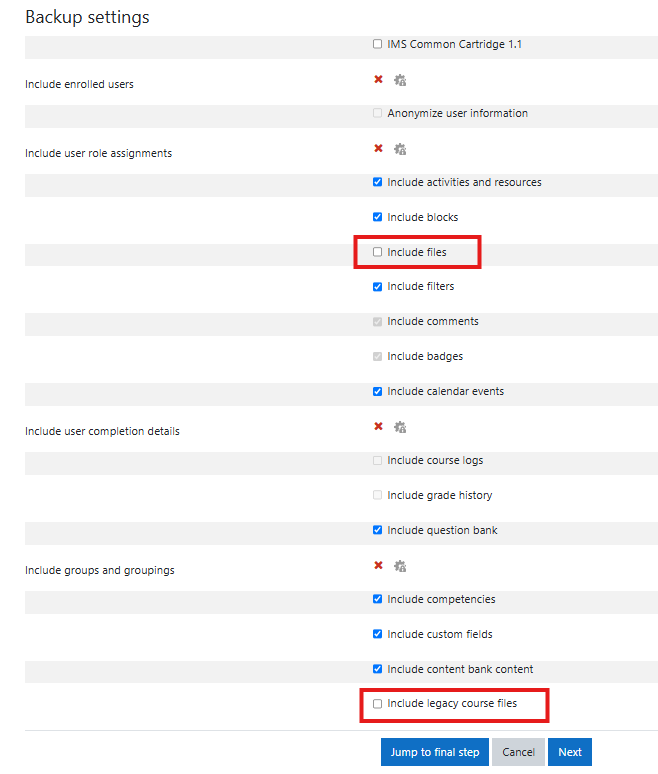
2. This will result in a significantly smaller backup of your activities and content.

3. In the restored course, you can then replace the missing file activities with url links to the relevant files hosted in a cloud storage solution of your choice.