- You can download the Moodle app for Android or Apple devices: https://download.moodle.org/mobile
- First you must “Reset your Moodle Account Password”.
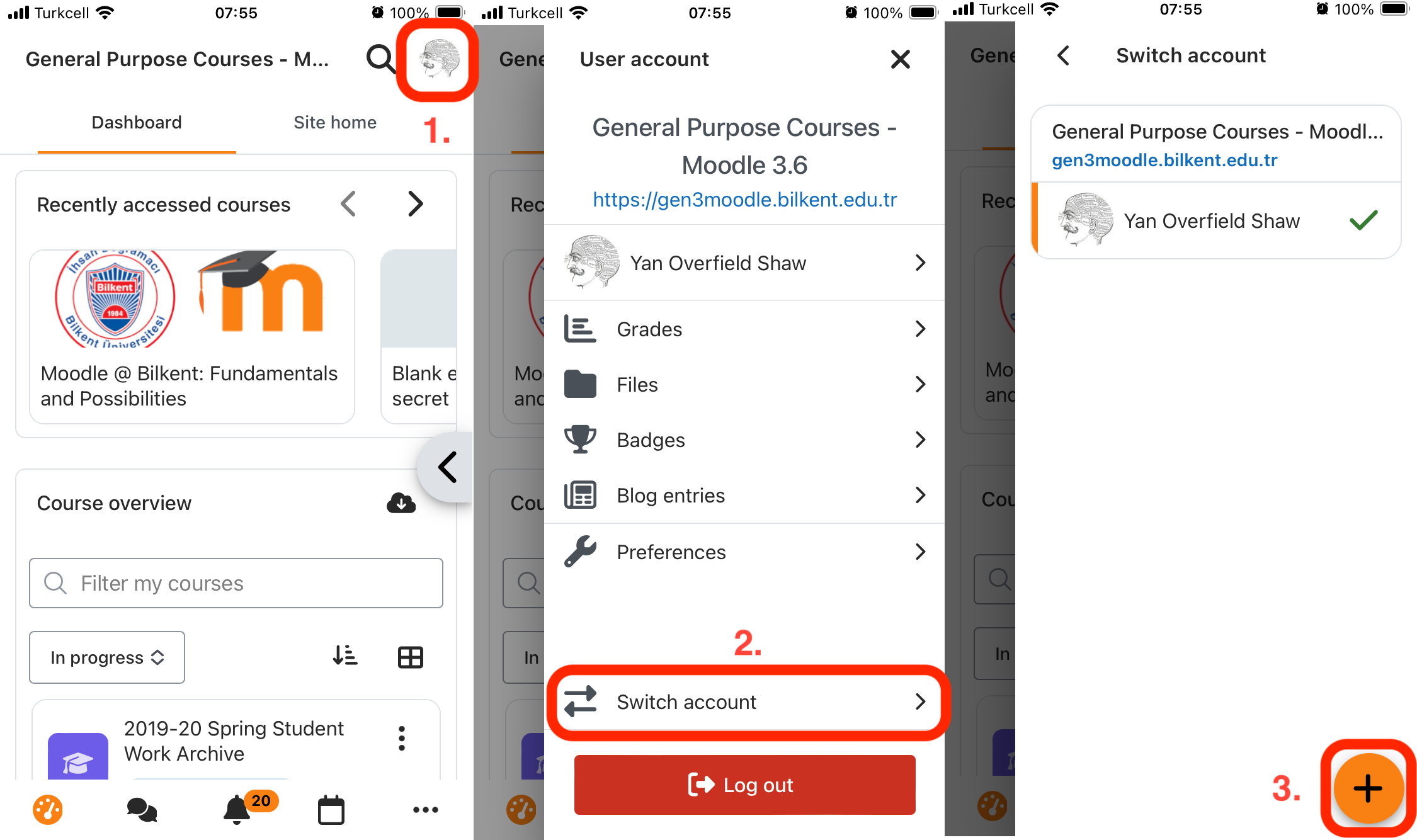
- Open the Moodle app. If you already have a Moodle added in your app and want to add a new one, click on your profile picture, select “Switch account”, and tap the “+” icon to add a Moodle site.
Get Moodle site details method 1: use QR Code
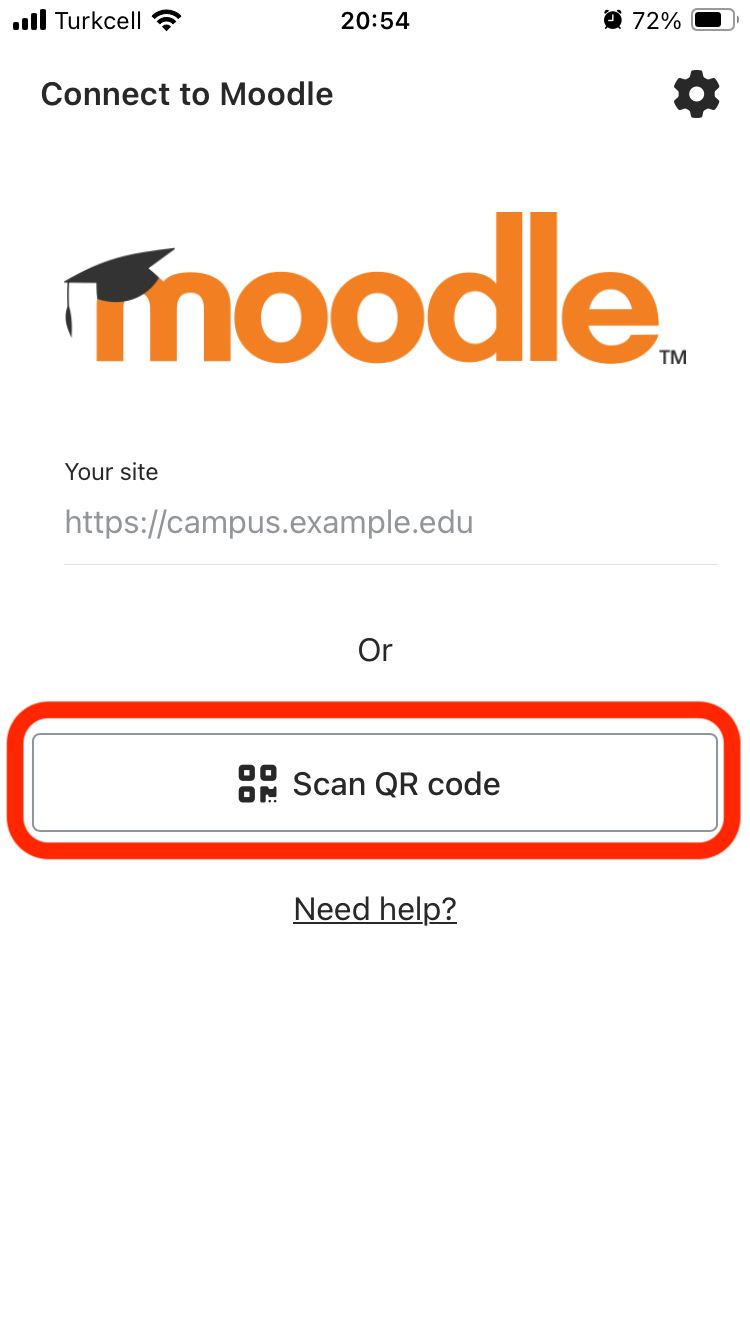
- Tap on “Scan QR Code”
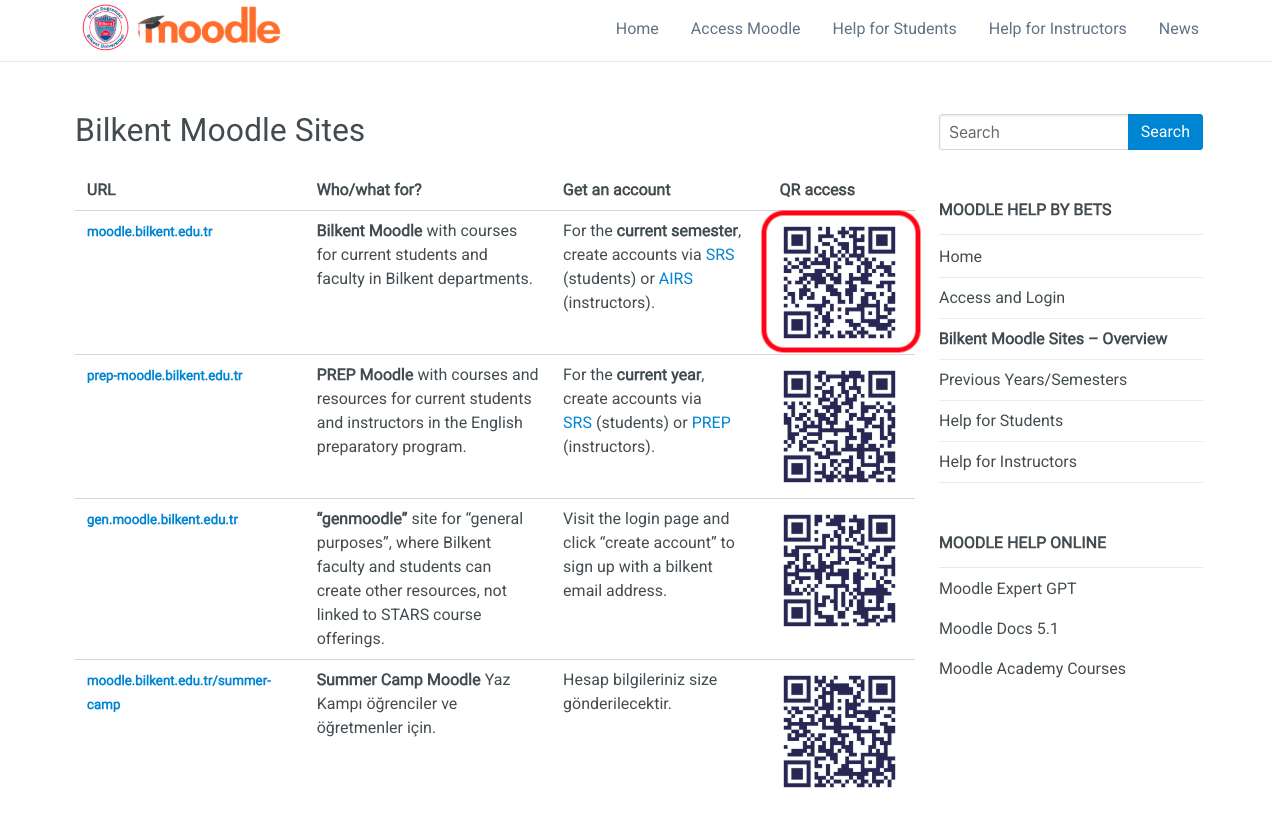
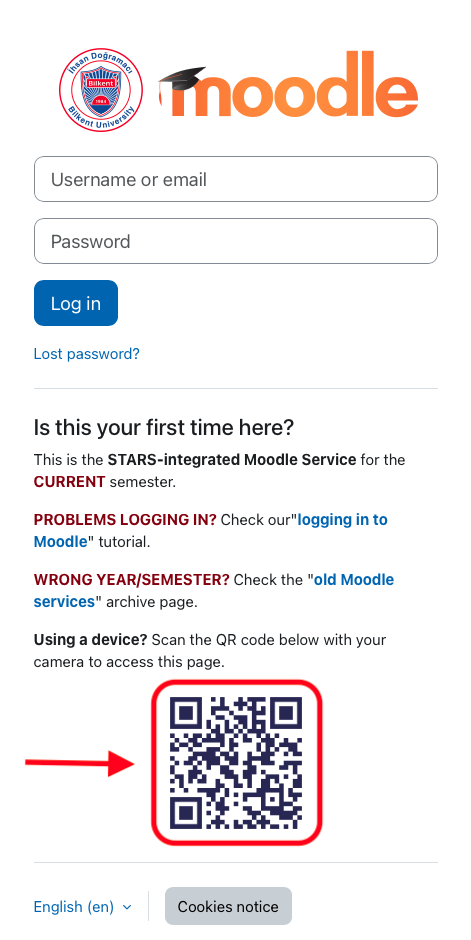
- Scan the QR code on the Bilkent Moodle Sites page or the relevant login page (N.b., you must be logged out of Moodle on your device to see the login page).
- Verify the link that appears
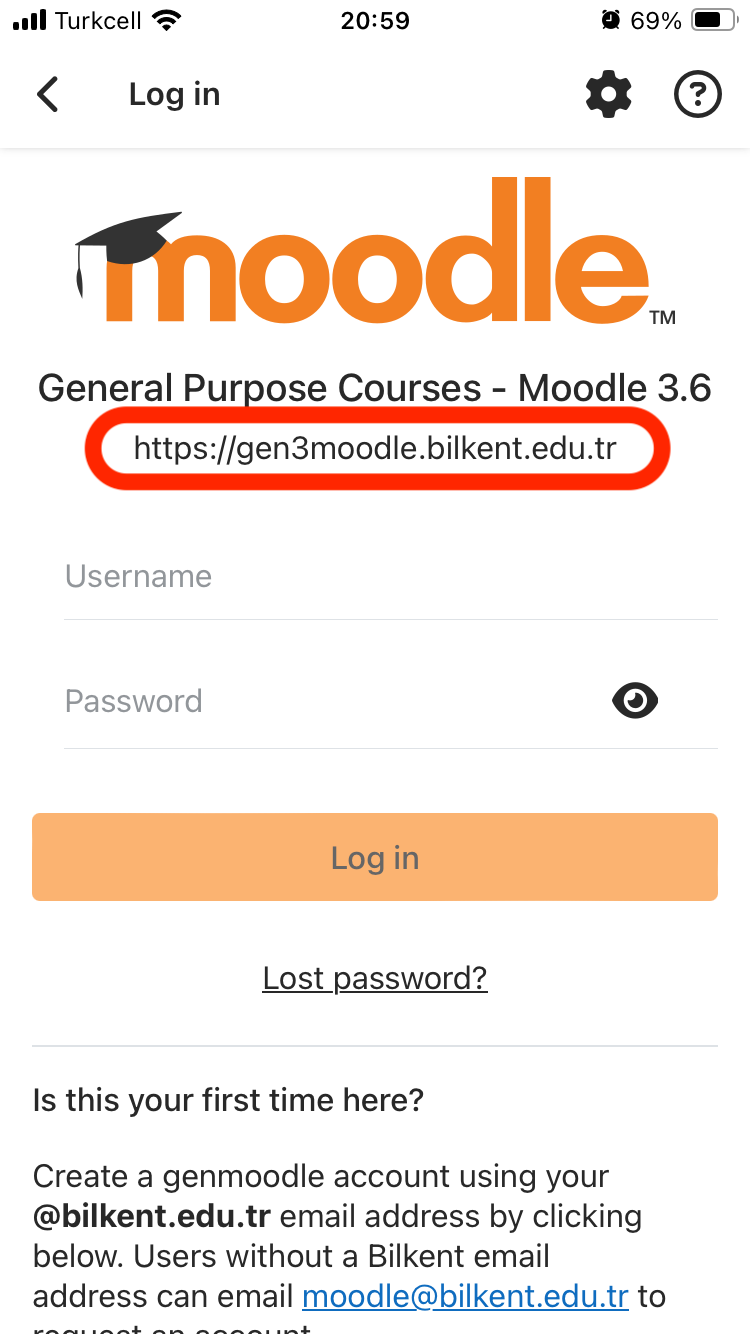
Get Moodle site details method 2: enter manually
- First you must find the login page of the Moodle site that you want to access with the app (see Bilkent Moodle Sites).
- Then you must also “Reset your Moodle Account Password”
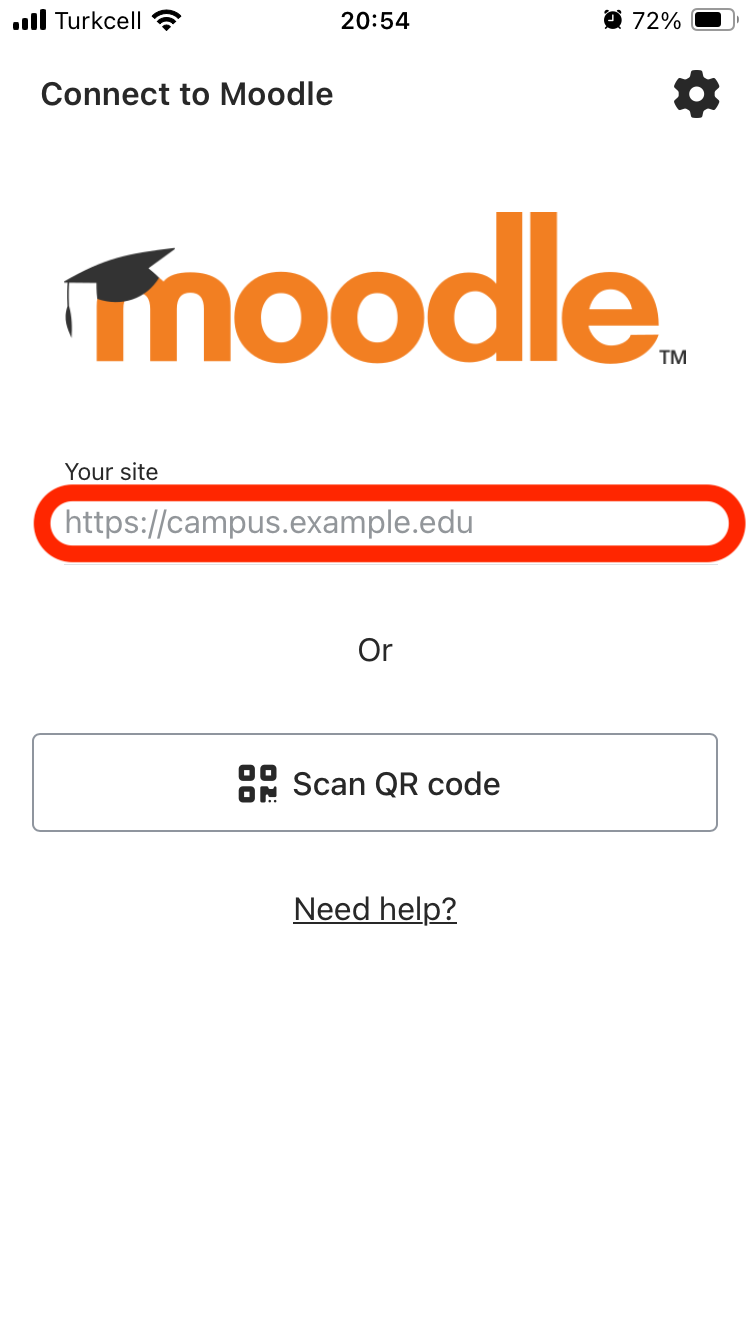
- Tap on the “Site address” field.
- Enter the appropriate site address below (NOTE: you must change the year and semester to the current one)
- Bilkent students in their departments: https://moodle.bilkent.edu.tr/2024-2025/fall
- English preparatory students in PREP: https://PREP-moodle.bilkent.edu.tr/2024-2025
- Enter the appropriate site address below (NOTE: you must change the year and semester to the current one)
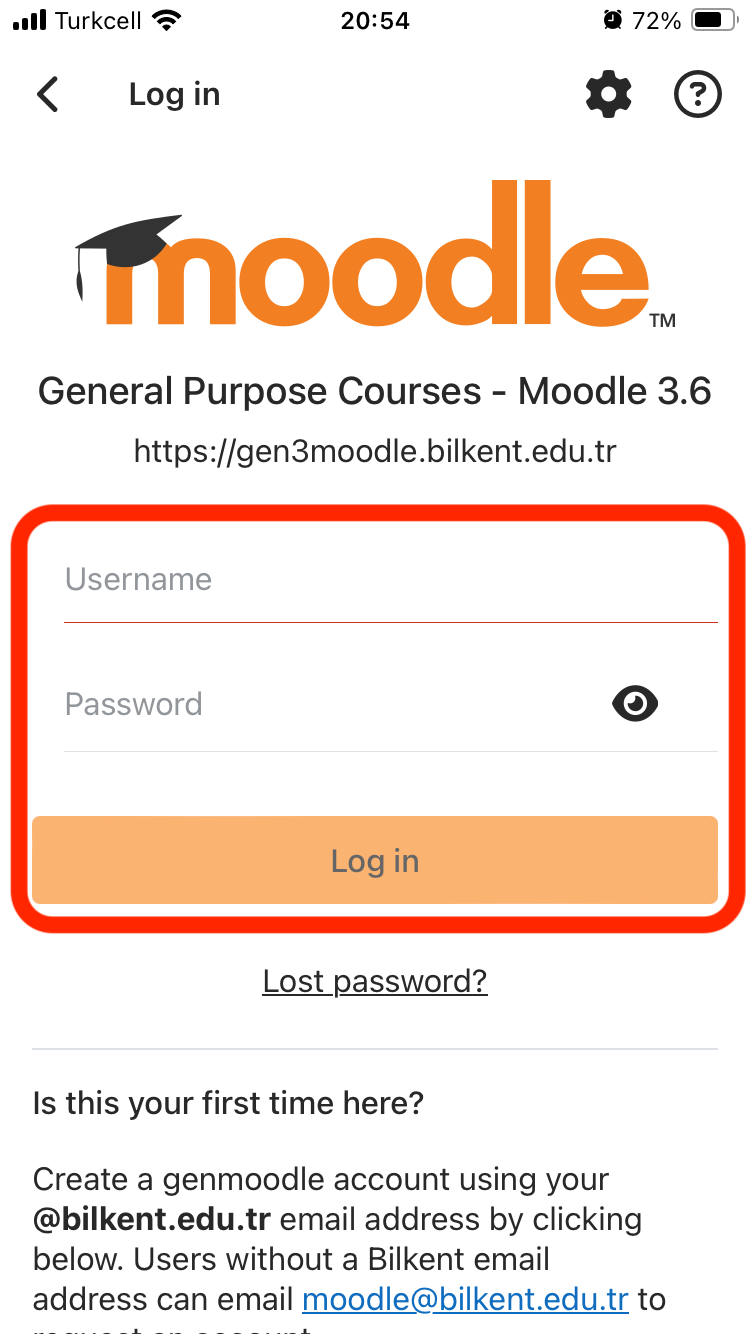
Log in
- Enter the username and password you set earlier. Log in with your username (this is your Bilkent ID; i.e., your Bilkent student/personnel number) or your email address and the Moodle password you created earlier (to create one now: “Reset your Moodle Account Password“). Click “Login”.